iPhone Background Sounds: how to use the built-in white noise
Yes, iPhone has white noise built in. It's called Background Sounds. To turn it on, open Settings, tap Accessibility, tap Audio & Visual, tap Background Sounds, and turn it on. Pick a sound such as Bright Noise or Dark Noise and set the volume. It keeps playing when the phone locks unless you turn on Stop Sounds When Locked, and iOS 26 added a timer.
That built-in feature is called Background Sounds, and it's good. For a lot of people it's all they need. Below are the exact steps, the faster ways to start it, and an honest look at where a dedicated white noise app does more.
How to turn on Background Sounds
These steps come from Apple's iPhone User Guide.
- Open the Settings app.
- Tap Accessibility.
- Tap Audio & Visual.
- Tap Background Sounds, then turn on Background Sounds.
- Tap the sound name and choose a sound.
- Drag the volume slider to set how loud it plays.
Sound starts right away. To stop it, come back here and turn Background Sounds off, or use the Control Center button described below. Background Sounds has been on the iPhone since iOS 15 (Apple Support).
Which sounds does Background Sounds have?
The feature launched with six sounds: Balanced Noise, Bright Noise, Dark Noise, Ocean, Rain and Stream (Apple Newsroom, 2021). iOS 18 added Night and Fire (MacRumors). iOS 26 added eight more, bringing the total to sixteen (MacRumors):
| Noise | Nature | Places and things |
|---|---|---|
| Balanced Noise | Ocean | Babble |
| Bright Noise | Rain | Steam |
| Dark Noise | Stream | Airplane |
| Night | Boat | |
| Fire | Bus | |
| Rain on Roof | Train | |
| Quiet Night |
Notice that none of them is called white, pink or brown noise. Apple doesn't publish what's inside each one. Going by the names, Bright Noise is the closest to classic white noise and Dark Noise is the lowest of the three. If you want to hear what true white noise sounds like for comparison, our browser player is a good reference.
How to start Background Sounds from Control Center
Going into Settings every night gets old. Apple gives you a few shortcuts.
Control Center
According to Apple Support:
- Open Control Center, then touch and hold the Background Sounds button.
- Tap Background Sounds to start or stop playing.
- Tap a sound to switch to it and hear a preview.
- Tap the background to go back.
If the button isn't there, add it: open Control Center, tap the plus button in the top-left corner, tap Add a Control, and find it among the hearing controls (Apple's accessibility shortcuts guide).
Accessibility Shortcut, Back Tap and the Action Button
Apple's Background Sounds guide says you can also control it "with the click of a button," and its accessibility shortcuts guide lists the options. When you set one up, pick Background Sounds from the list of features:
- Triple-click the side button. Set it up in Settings > Accessibility > Accessibility Shortcut. If Background Sounds is the only feature you select, a triple-click turns it on or off immediately.
- Back Tap. Double- or triple-tap the back of the phone to open an accessibility feature you choose.
- Action Button. On iPhones that have one, it can open an accessibility feature of your choice.
Shortcuts and Focus
In iOS 26, you can add a shortcut that turns Background Sounds on when you take an action, like turning on a Focus (Apple Support). Pairing it with a Sleep Focus means the sound starts when your phone goes into bedtime mode.
Background Sounds settings worth knowing
Under Settings > Accessibility > Audio & Visual > Background Sounds, a few options change how it behaves overnight (Apple's iPhone User Guide):
- Stop Sounds When Locked. Leave this off if you want sound all night with the screen dark. Turn it on and the sound stops when the phone locks.
- Use When Media is Playing. Lets Background Sounds keep going under music or a podcast, with its own Volume with Media slider.
- Equalizer. Adjust the tone on a grid, choose Broad or Focused, and shift the Balance left or right. This needs iOS 26 or later.
- Stop Sound with a Timer. Stops the sound at a specific time or after an amount of time. Also iOS 26 or later.
- Always use these settings. Keeps your choices for a daily routine.
Is there a white noise timer on iPhone?
Yes, if you're on iOS 26 or later. Go to Settings > Accessibility > Audio & Visual > Background Sounds, tap Stop Sound with a Timer, turn on the timer, then choose "At a specific time" or "After an amount of time" (Apple's iPhone User Guide). Apple's support article introduces the timer as part of iOS 26, so on older versions Background Sounds plays until you turn it off (Apple Support).
Whether you want a timer at all is a separate question. Steady sound tends to mask best when it keeps going, because if it stops at 3 a.m. the next noise is the one you hear. We go through the tradeoffs in should white noise play all night.
Can you play brown noise or pink noise on iPhone?
Not by those names in Background Sounds. Dark Noise is the low, rumbly option, but Apple doesn't say whether it's brown noise, and it isn't labeled as such. With iOS 26's Equalizer you can tilt any sound darker or brighter, which gets you some of the way.
If you want named noise colors, you have two options:
- A browser player. Our brown noise and pink noise pages play in Safari for free. The catch: phone browsers usually stop audio when the screen locks, so they're better for a nap or a work session than a full night.
- An app. A white noise app runs as native background audio, so it keeps playing with the screen off. If you're not sure which color suits you, our guide to white vs pink vs brown noise explains the differences.
Background Sounds vs a white noise app
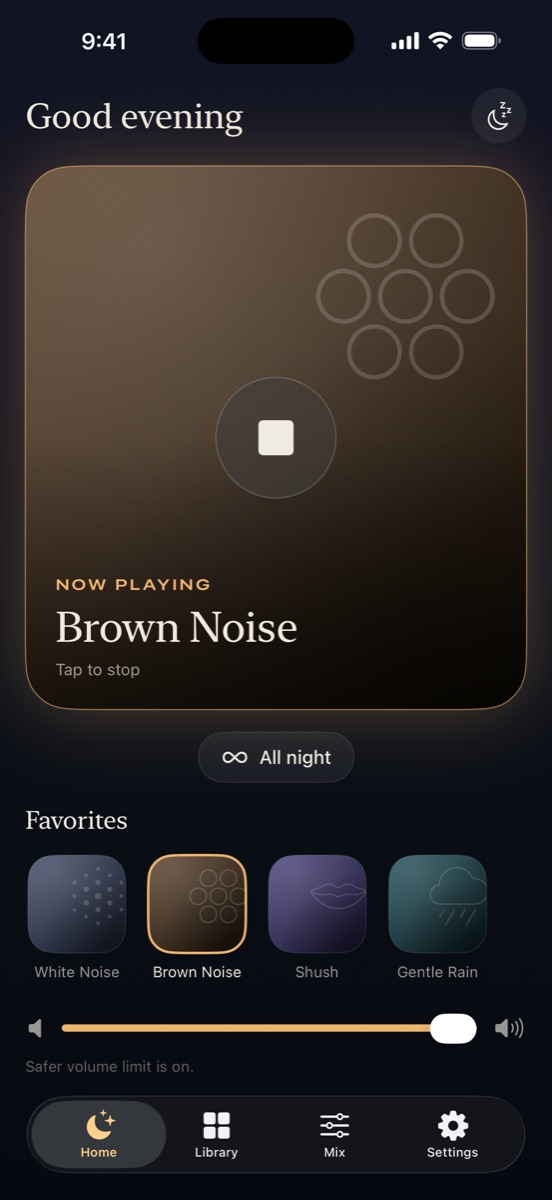
Here's how the built-in feature compares with Sleepy Noise, the app we make. We've tried to be fair to Apple, which built a genuinely useful free tool.
| iPhone Background Sounds | Sleepy Noise | |
|---|---|---|
| Price | Free, built in | Free core sounds; optional one-time $9.99 Lifetime |
| Ads | None | None |
| Noise colors | Balanced, Bright and Dark Noise | White, pink and brown free; grey and deep brown in Lifetime |
| Number of sounds | 16 as of iOS 26 | 12 free, more in Lifetime packs |
| Mix sounds together | One at a time | Up to 3 layers, each with its own volume |
| Plays with the phone locked | Yes, unless you turn on Stop Sounds When Locked | Yes, all night by default |
| Timer | iOS 26 or later | Yes, and it fades out |
| Plays under music or podcasts | Yes, with Use When Media is Playing | No, it stops when you start other audio |
| Quick start | Control Center, side button, Back Tap, Action Button | Widgets, Control Center, Action Button, Siri |
| Nursery volume limit | Not among Apple's listed settings | Safer volume limit, on by default |
| Needs | iOS 15 or later (timer and Equalizer need iOS 26) | iOS 18 or later |
When Background Sounds is enough
If you want one steady sound, you like one of Apple's sixteen, and you're on iOS 26 for the timer, you may never need an app. It costs nothing, it's already on your phone, and it can play under a podcast, which Sleepy Noise doesn't do.
When an app helps
- You want brown or pink noise by name. Especially if you've read about brown noise for sleep and want the real thing rather than the closest match.
- You want to layer sounds. Brown noise under rain, or a fan under ocean waves, is a common combination that Background Sounds can't do.
- It's for a baby's room. Sleepy Noise turns on a safer volume limit by default, capping the app at 60% with a reminder to place the phone at least 2 m (about 7 ft) from the crib. Phones can't measure decibels, so that's guidance, not a guarantee. Our guide to white noise for babies covers placement.
- You want it one tap away. Sleepy Noise opens straight to one big button that plays your sound, and you can start it from a Lock Screen widget or by asking Siri without opening anything.
- Your current setup keeps going quiet overnight. If sound stops at 2 a.m., our guide to why white noise apps stop at night walks through the usual causes.
Where Sleepy Noise fits
Sleepy Noise is a white noise app for iPhone and Android. The 12 core sounds are free forever: white, pink and brown noise, a box fan, rain, ocean waves, and a few sounds for babies like shush and heartbeat. They're generated live on the phone, so there's no loop to notice. It plays all night unless you set a timer, pauses for calls and alarms and fades back in afterward, and never starts on its own when your phone connects to the car. There are no ads and no account, and it works offline.
What it doesn't do: no sleep tracking, no Apple Watch app, no iPad version yet. If Background Sounds already works for you, keep using it. If you want named noise colors, mixing or a nursery-friendly default, that's what we built.
Frequently asked questions
Does iPhone have white noise built in?
Yes. Background Sounds, under Settings > Accessibility > Audio & Visual, plays Bright, Balanced and Dark Noise plus nature and ambient sounds. None is labeled white noise, but Bright Noise is the closest.
Does Background Sounds play all night?
Yes, unless you set a timer or turn on Stop Sounds When Locked. By default it keeps playing after the screen locks.
How do I put white noise on a timer on iPhone?
On iOS 26 or later, go to Settings > Accessibility > Audio & Visual > Background Sounds, tap Stop Sound with a Timer, and choose a time or a duration. White noise apps usually have their own timers too.
Does iPhone have brown noise?
Not by name. Background Sounds includes Dark Noise, a low, rumbly option, but Apple doesn't call it brown noise. A white noise app or a browser player will give you brown noise specifically.
Why does white noise stop when my iPhone locks?
If you're playing it in Safari or another browser, the browser usually stops audio when the screen locks. If it's Background Sounds, check that Stop Sounds When Locked is off.